Multi-information displayMeter
Multi-information displayDisplay
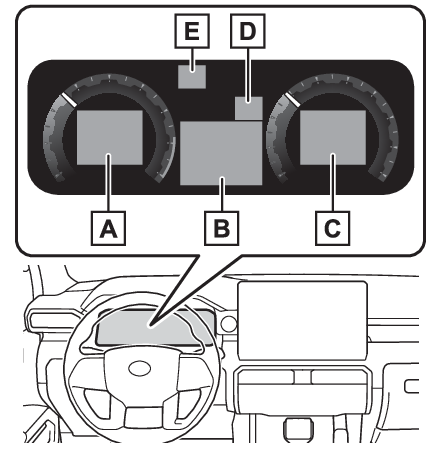
Multi-information displayMulti-information display (12.3-inch display)The multi-information display is used to display fuel efficiency related information
and various types of driving-related information. The multi-information display can
also be used to change the display settings and other settings.Display contentsFollowing information is displayed in each area on the multi-information display.Content display area (left)Content display area (center)Content display area (right)Driving support system information display areaWhen driving information support system is displayed on the content display area,
the system operating state will not be displayed in this area.RSA (Road Sign Assist) display area (if equipped) (RSA (Road Sign Assist)*)Multi-information display
Content displayContent display area (center)BlankDriving support system information display (Driving support system information display)Map display (Map display)Trailer settings screen (Trailer settings screen)Settings display (Settings display)Warning message displayContent display area (left/right)BlankFuel Economy (Fuel Economy)Eco Driving Indicator (Eco Driving Indicator)Driving support system information display (Driving support system information display)Navigation system-linked display (Navigation system-linked display)Audio system-linked display (Audio system-linked display)Drive information display (Driving information display)Tire inflation pressure (Tire inflation pressure)Traction monitor display (if equipped) (Traction monitor display (4WD models))Trailer brake (if equipped) (Trailer brake (if equipped))Trailer mode BSM (if equipped) (Trailer mode BSM (if equipped))Clinometer (Clinometer)Voltmeter and Engine oil pressure gauge (Voltmeter and Engine oil pressure gauge)Engine oil temperature gauge and Transmission oil temperature gauge (Engine oil temperature gauge and Transmission oil temperature gauge)Boost gauge (Boost gauge)Note:Liquid crystal displaySmall spots or light spots may appear on the display. This phenomenon is characteristic
of liquid crystal displays, and there is no problem continuing to use the display.Warning:Caution for use while drivingWhen operating the multi-information display while driving, pay extra attention to
the safety of the area around the vehicle.Do not look continuously at the multi-information display while driving as you may
fail to see pedestrians, objects on the road, etc., ahead of the vehicle.The information display at low temperaturesThe information display at low temperaturesSwitches
Meter control switchesMulti-information display
Meter control switchesMeter
Meter control switchesSteering wheel
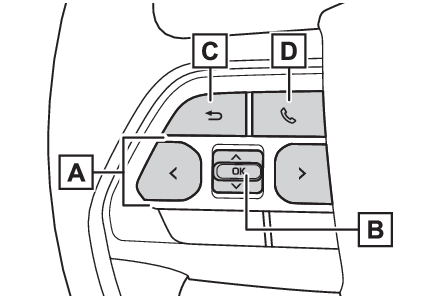
Meter control switchesChanging the meter displayThe multi-information display is operated using the meter control switches./
: Change displayed content and scroll up/down the screen
/
: Change the screen and move the cursorPress: Enter/SetPress and hold: Reset/Display customizable items/Display the cursorReturn to the previous screenCall sending/receiving and history displayLinked with the hands-free system, sending or receiving call is displayed. For details
regarding the hands-free system, refer to the “
MULTIMEDIA OWNER’S MANUAL”.Changing the displayThe multi-information display is operated using the meter control switches.Changing the meter display type settingThe meter display type setting can be changed on “
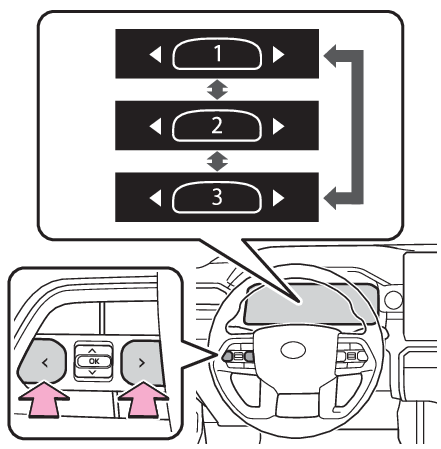
Settings”. (Settings display)Changing the screenSelect items from the combination of 3 screens to display on each 3 content display
areas.Press
or
of the meter control switches to scroll the screen.Changing the display contentsSwitches items displayed on each contents display area (left/center/right).Press and hold
to display the cursor on the content display area (center).Press
or
to move the cursor and select the content display area.Press
or
to select the display items.Items displayed in the content display areaSelect items to enable/disable on the content display area (left/right).Press and hold
to display area (center).Press
or
to move the cursor and select the content display area.Contents display area (left): Press
to display contents list.Contents display area (right): Press
to display contents list.Press
or
to select the display items.Press
to enable/disable items.Warning:Caution for use while drivingFor safety, avoid operating the meter control switches while driving as much as possible,
and do not look continuously at the multi-information display while driving. Stop
the vehicle and operate the meter control switches. Failure to do so may cause a steering
wheel operation error, resulting in an unexpected accident.Multi-information display
Fuel economyFuel economyCurrent fuel consumptionAverage fuel economyFuel consumption
Current fuel consumptionFuel consumption
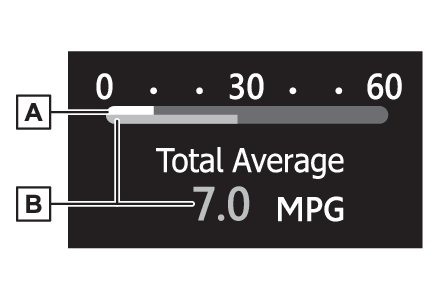
Average fuel economyFuel EconomyCurrent fuel economyDisplays the instantaneous current fuel consumption.Average fuel economyDisplays the average fuel economy since the function was reset or the average fuel
economy after starting or refueling.*1, 2, 3The average fuel economy selected by Fuel Economy on the “
Settings” screen is displayed.*1Use the displayed fuel consumption as a reference only.*2Average fuel economy after starting is reset each time the engine stops.*3Average fuel economy since function was reset can be reset by pressing and holding
.Multi-information display
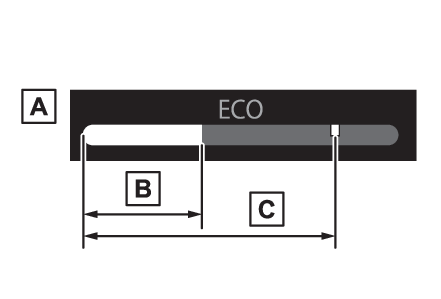
Eco Driving IndicatorEco Driving IndicatorEco Driving IndicatorEco Driving Indicator Zone DisplaySuggests the Zone of Eco driving with current Eco driving ratio based on acceleration.Eco driving ratio based on accelerationIf the acceleration exceeds the Zone of Eco driving, the right side of the Eco Driving
Indicator Zone Display will illuminate.Zone of Eco drivingMulti-information display
Driving support system information displayDriving support system information displayDriving support system information displaySelect to display the operational status of the following systems:LDA (Lane Departure Alert) (LDA (Lane Departure Alert))LTA (Lane Tracing Assist) (LTA (Lane Tracing Assist))Dynamic radar cruise control (Dynamic radar cruise control)Cruise control (Cruise control)PDA (Proactive driving assist) (if equipped) (PDA (Proactive driving assist)*)PCS (Pre-Collision System) (PCS (Pre-Collision System))Map displayMulti-information display
Map displayMap displayDisplays the map data according to the navigation system.Switches the displayed map size by pressing
.Multi-information display
Navigation system-linked displayNavigation system-linked displayNavigation system-linked displaySelect to display the following navigation system-linked information:Route guidance to destinationCompass display (heading-up display)Multi-information display
Audio system-linked displayAudio system-linked displayAudio system-linked displayThe operating conditions of the audio system can be displayed on the multi-information
display.Drive informationDriving information displayDrive information2 items that are selected using the “
Drive Info Items” setting (average speed, distance and total time) can be displayed vertically.Use the displayed information as a reference only.Following items will be displayed.“
Average Speed”: Displays the average vehicle speed since engine start*“
Distance”: Displays the distance driven since engine start*“
Total Time”: Displays the elapsed time since engine start**These items are reset each time the engine stops.Trip information2 items that are selected using the “
TRIP A Items” or “
TRIP B Items” setting (average speed, distance and total time) can be displayed vertically.Use the displayed information as a reference only.“
Average Speed”: Displays the average vehicle speed since the display was reset*“
Distance”: Displays the distance driven since the display was reset*“
Total Time”: Displays the elapsed time since the display was reset**To reset, display the desired item and press and hold
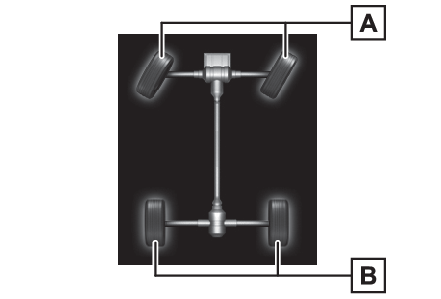
.Tire inflation pressureTire inflation pressureDisplays inflation pressure of each tire.Traction monitor displayTraction monitor display (4WD models)Front tire direction displayDisplays the operation amount and direction of the steering wheel via changes to the
front tires on the display.Wheel spin displayWhen a tire is spinning, its icon on the display changes its color and blinks.This item is displayed only when driving mode is set to sport mode.The illustration used is intended as an example, and may differ from the image that
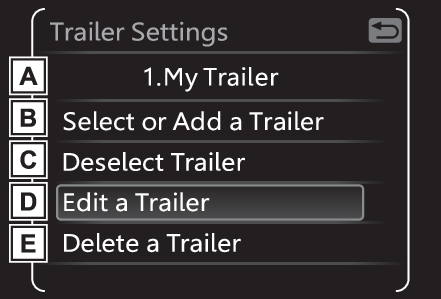
is actually displayed on the multi-information display.Trailer Settings screenTrailer settings screenTrailer settings screenDisplays the name of the currently selected trailer or “
No Trailer Selected” if a trailer has not yet been selectedAdd a new trailer or select an existing saved trailerMaximum of 10 trailers can be saved.Select the trailer name, length, hitch type, brake type and number of axles.The parameters which can be set depend on which of the trailer systems are installed
on the vehicle. (Trailer Brake Controller, Trailer Backup Guide and Trailer Mode BSM)Deselect the currently selected trailerUsed when a 4-pin trailer connector has been disconnected. (4-pin trailer connector
disconnection cannot be automatically detected by Trailer Brake Controller)Edit the parameters of a saved trailer (name, length, hitch type, brake type and number
of axles)The parameters which can be edited depend on which of the trailer systems are installed
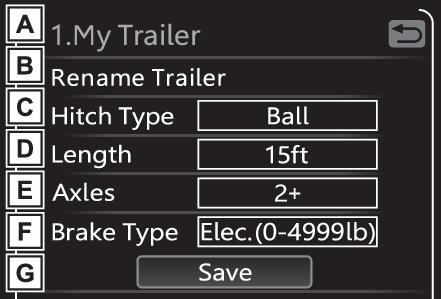
on the vehicle (Trailer Brake Controller, Trailer Backup Guide and Trailer Mode BSM)Delete a saved trailerTrailer detail screenDisplays the name of the current trailer which is being added or edited.Change the name of the trailer.Change the hitch type of the trailer between ball hitch (conventional), gooseneck
or fifth wheel. Note that gooseneck and fifth wheel trailers are not supported for
some features (Trailer Backup Guide and Trailer Mode BSM)Change the length of the trailer. If the exact length is not listed, round up the
actual length of the trailer to the closest available value.“
Auto” length detection can also be selected.Change the number of axles.Change the brake type (electric or electric over hydraulic) and weight of the trailer,
or turn trailer brakes off for that trailer.Save the trailer informationIf there are any errors with the trailer values, re-select the value or delete and
re-save the trailer. If the error continues, contact your Toyota dealer.Trailer brakeTrailer brake (if equipped)Displays trailer brake control status (Trailer brake controller*) and trailer type*.*To select the trailer, press and hold the
meter control switch. (Changing the meter display)Trailer Mode BSMTrailer mode BSM (if equipped)Displays trailer length* and trailer blind spot status (BSM (Blind Spot Monitor)*).*To select the trailer, press and hold the
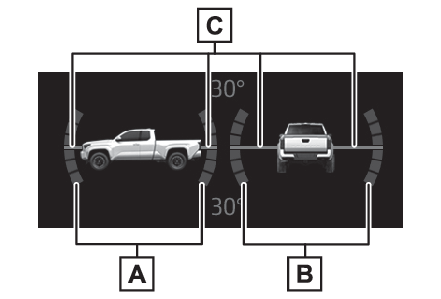
meter control switch. (Changing the meter display)ClinometerClinometerClinometer displays the vehicle inclination to the front, rear, left and right within
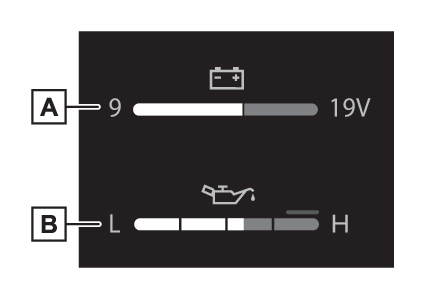
a range of 0° to approximately 30°.Degree markers of incline to the front and rearIndicates the vehicle inclination in degrees in the front and rear directions.Degree markers of incline to the left and rightIndicates the vehicle inclination in degrees in the left and right directions.PointerIndicates the degree of the vehicle inclination in comparison to a parallel line.VoltmeterEngine oil pressure gaugeVoltmeter and Engine oil pressure gaugeVoltmeterDisplays the charge stateEngine oil pressure gaugeDisplays the engine oil pressureNotice:VoltmeterWhen the voltmeter indicates 19 V or higher or 9 V or lower while the engine is running,
there may be a battery or charging system malfunction. Have the vehicle inspected
at your Toyota dealer.Engine oil pressure gaugeWhen the value of the engine oil pressure gauge drops while the engine is running,
stop the vehicle in a safe place immediately and check the amount of engine oil. (Checking the engine oil)When the oil pressure drops even though the engine oil amount has not decreased, or
if the oil pressure does not increase when engine oil is added, contact your Toyota
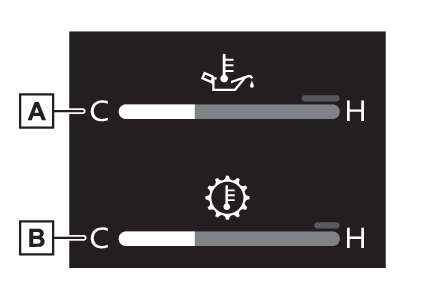
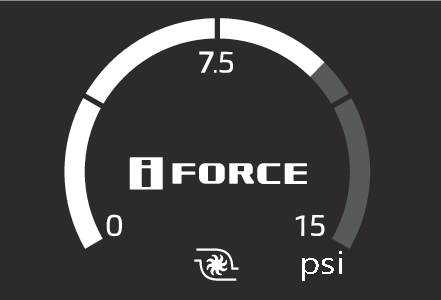
dealer, as there may be a problem with the lubrication system.Engine oil temperature gaugeTransmission oil temperature gaugeEngine oil temperature gauge and Transmission oil temperature gaugeEngine oil temperature gaugeDisplays the engine oil temperatureTransmission oil temperature gauge (if equipped)Displays the transmission oil fluid temperatureBoost gaugeBoost gaugeDisplays the boost pressure.Multi-information display
SettingsMeter
SettingsLanguage (multi-information display)Settings displayMeter display settings that can be changedLanguageSelect to change the language displayed.UnitsSelect to change the units of measure displayed.Meter TypeSelect to change the meter type setting.Meter StyleSelect to change the meter style.Dial TypeSelect to change dial type.Fuel economy displaySelect to change the average fuel consumption display between after start/after reset/after
refuel. (Fuel Economy)Drive information and Trip A/B itemsSelect to set the first and second items of the drive information display to any of
the following: average vehicle speed/distance/elapsed time.Pop-up displaySelect to enable/disable pop-up displays for each relevant system.Default settingSelect to reset the meter display settings to the default setting.Vehicle functions and settings that can be changedCustomizable featuresNote:Suspension of the settings displaySome settings cannot be changed while driving. When changing settings, park the vehicle
in a safe place.If a warning message is displayed, operation of the settings display will be suspended.Warning:Cautions during setting up the displayIf the engine is operating while changing certain settings on the settings display,
ensure that the vehicle is parked in a place with adequate ventilation. In a closed
area such as a garage, exhaust gases including harmful carbon monoxide (CO) may collect
and enter the vehicle. This may lead to death or a serious health hazard.Notice:During setting up the displayTo prevent battery discharge, ensure that the engine is operating while setting up
the display features.Multi-information display
Stop & Start system informationStop & Start system information displayStop & Start system
System information displayStop & Start system information (if equipped)Stop & Start system operation time (after start)/status notificationDisplays the current amount of time the engine has been stopped by the operation of
the Stop & Start system.Also shows the status of the Stop & Start system with a pop-up display. (Multi-information display messages)Stop & Start system settingsThe length of time of the Stop & Start system will operate when the “
A/C” switch of the air conditioning system is on can be set to 2 different levels in
“
Settings” of the multi-information display. (Changing the idling stop time with the air conditioning system on)Suggestion functionMulti-information display
Suggestion functionSuggestion functionDisplays suggestions to the driver in the following situations. To select a response
to a displayed suggestion, use the meter control switches.Suggestion to turn on the headlightsIf the headlight switch is in other than
or
, and the vehicle speed is 3 mph (5 km/h) or higher for a certain amount of time when
the surroundings are dark, a suggestion message will be displayed.Suggestion to turn off the headlightsIf the headlights are left on for a certain amount of time after the engine switch
has been turned off, a suggestion message will be displayed.When the headlight switch is in the AUTO position: The message asking if you wish
to turn the headlights off is displayed. To turn the headlights off, select “
Yes”.If the driver’s door is opened after the engine switch is turned off, this suggestion
message will not be displayed.Note:CustomizationThe suggestion function can be turned on/off. (Gauges, meters and multi-information display (with 12.3-inch display) (, ))